How to schedule posts to a LinkedIn company Page
A company Page needs the same steady rhythm as a personal profile, and usually gets less of it: the founder posts, the Page waits. This is how to schedule the Page's posts too, as the Page, from the same place as everything else, and what LinkedIn lets a Page do differently.

Rodolfo MotaFounder of SPREVA
The short version
Connect LinkedIn with the account that administers the Page. SPREVA finds every Page you administer and adds each as an account of its own, next to your profile. Write the post, up to 3000 characters with images, a video or a PDF, pick the Page, and schedule it or add it to a queue. It goes out as the Page. Choose anyone or signed-in members as its audience: a Page cannot post to connections only.
Connecting the Page
- 1
Connect LinkedIn in SPREVA with your own LinkedIn account, the one that administers the Page.
- 2
SPREVA lists your profile and every Page where you are an administrator. Pick the ones to add.
- 3
Each Page becomes an account of its own: post to the Page, to your profile, or to both in one post.
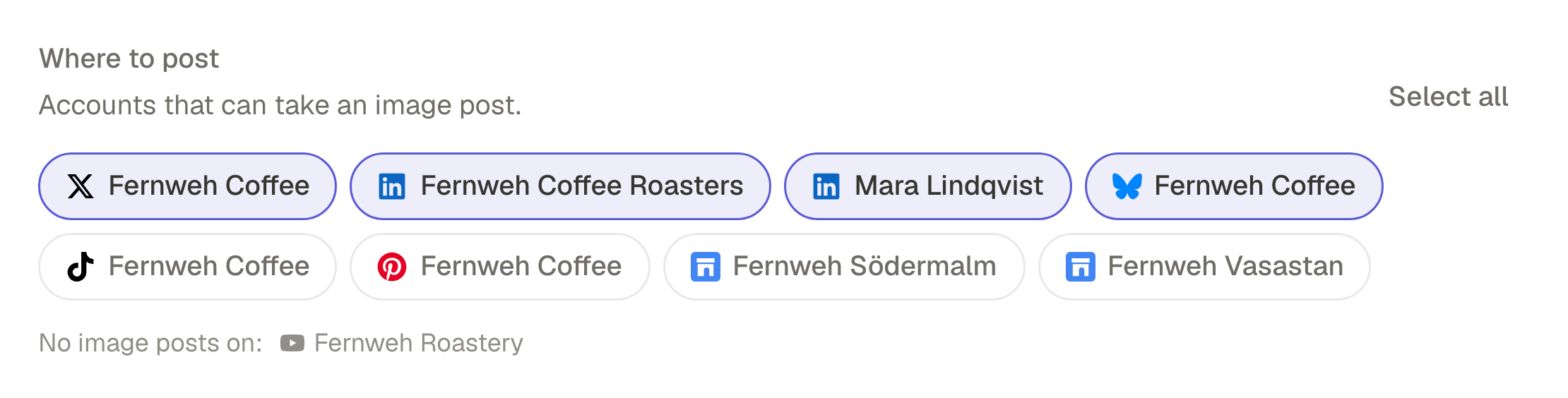
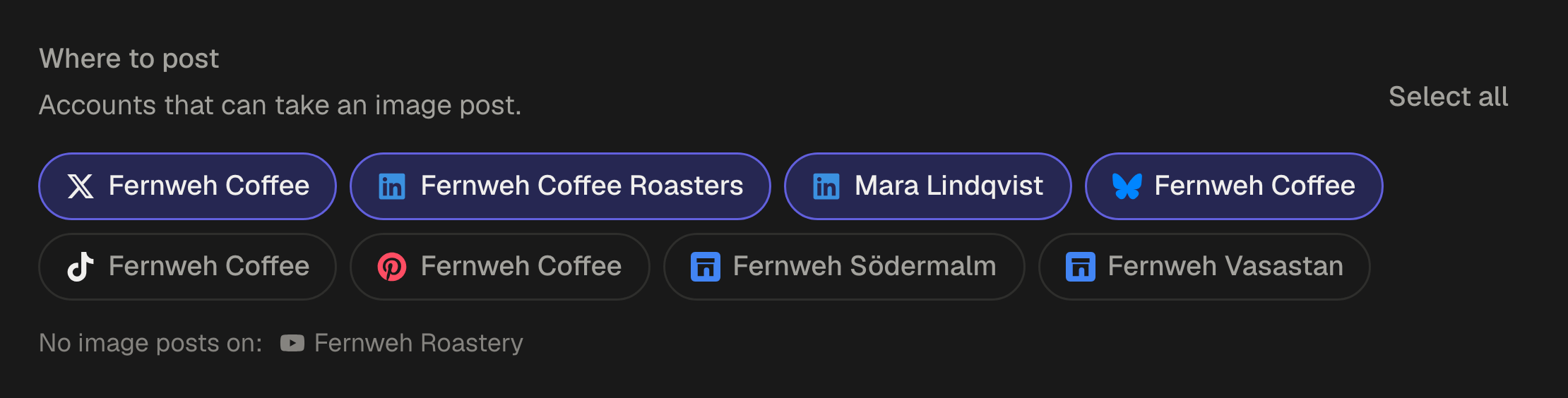
Only Pages where your role is administrator are added. If someone else administers the Page, ask them to make you an administrator, or to connect it in your workspace themselves.
What a Page post can carry
The same four kinds of post as a profile:
- Text, up to 3000 characters, with a link LinkedIn shows as a preview when the post has no picture.
- Images, up to 20 in one post, 8 MB each.
- One video, from 3 seconds to 30 minutes, alone in its post.
- One PDF people swipe through, up to 300 pages, with a title.
SPREVA checks all of it as you write and again right before it publishes. More on LinkedIn posts and PDF carousels.
Who sees a Page post
A Page post can be for anyone, or for anyone signed in to LinkedIn. A Page has followers, not connections, so connections only is refused when the post goes out: pick one of the other two in the LinkedIn settings of the editor.
The Page and the founder, in one post
Most company news does better twice: once from the Page, once from a person. Pick the Page and your profile in the same post and give each its own words under Per account: the Page speaks as the company, the founder in the first person. With an AI agent connected to SPREVA, ask for both at once:
Write two LinkedIn posts about our new office: one for the company Page, factual and short, and one for my profile, in the first person, about why we moved. Schedule both for Tuesday at 9:00 and show me the texts first.
When the Page belongs to a client
Agencies post to their clients' Pages from the client's workspace, with the client as a free Reviewer: nothing goes out until they say yes. How to manage several clients without mixing them up.
What comes back
Each Page post's impressions, reach, clicks, likes, comments and shares come back into SPREVA, with the Page's followers. A personal profile's posts usually come back without numbers, so the Page is where SPREVA can show you how LinkedIn went.
Give the Page a rhythm
Connect LinkedIn, add your Page, make a queue with two mornings a week, and fill it with the Page's next month. Every plan starts with a 7-day trial.
Questions
Can I schedule posts to a LinkedIn company Page?
Yes, to Pages where you are an administrator. Each Page is an account of its own in SPREVA, next to your profile.
I am not an administrator of the Page. Can I post to it?
Not yet. SPREVA adds the Pages where your role is administrator; ask an administrator to give you that role or to connect the Page.
Can I schedule the same post for several Pages?
Yes. Every connected profile and Page is an account of its own in SPREVA. Pick as many as you like in one post and give any of them its own text.
Can a company Page post a PDF carousel?
Yes. Choose Document Post, add one PDF of up to 300 pages and give it a title, which LinkedIn shows with the document.
Can I mention people or companies from a Page post?
Not yet. An @ in a scheduled LinkedIn post stays plain text, so mention people from LinkedIn once the post is out.
Written by
Rodolfo Mota
Founder of SPREVA
Makes SPREVA in Portugal: the Studio, the tools an agent works with, and the publishing behind them.
Keep reading
- How to schedule LinkedIn posts, PDF carousels includedSchedule LinkedIn posts with text, images, a video or a PDF people swipe through: how it works in SPREVA, how each one shows, and the limits checked first.
- How to manage social media for several clients without posting to the wrong oneOne workspace per client, accounts that cannot cross, a free reviewer each and a plan each. How an agency keeps clients apart in SPREVA, and what it costs.
- How to send a client a monthly social media reportWhat a monthly social media report should say, and how to pull it from SPREVA: the numbers against last month, the posts that worked, and what comes next.