Make it once. Post it on YouTube and everywhere else.
Schedule your uploads with their title and thumbnail, cut Shorts from the long video, make new videos from a script, and send each one to TikTok, Instagram and X in the same step.
One video, a week of posts
Start from the video you already made, or from an idea.
Upload and schedule
Add the title, description, thumbnail and privacy, and pick the time. SPREVA uploads it to your channel when it is due.
Cut the Shorts
Ask for up to 10 moments from the video and SPREVA cuts them 9:16, on whole sentences, with captions and a hook. Vertical and up to three minutes long, YouTube shows them as Shorts.
Or start from a script
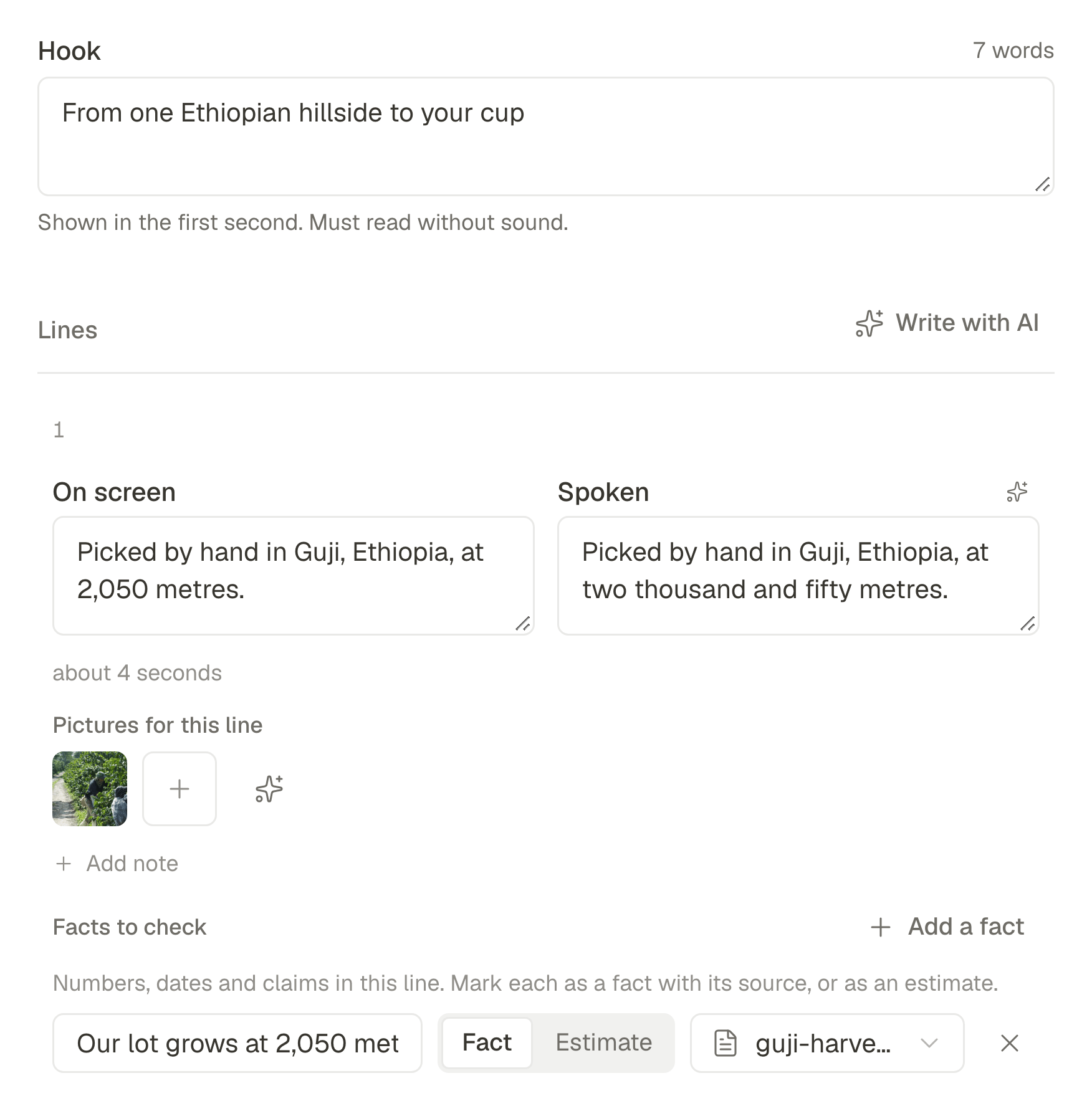
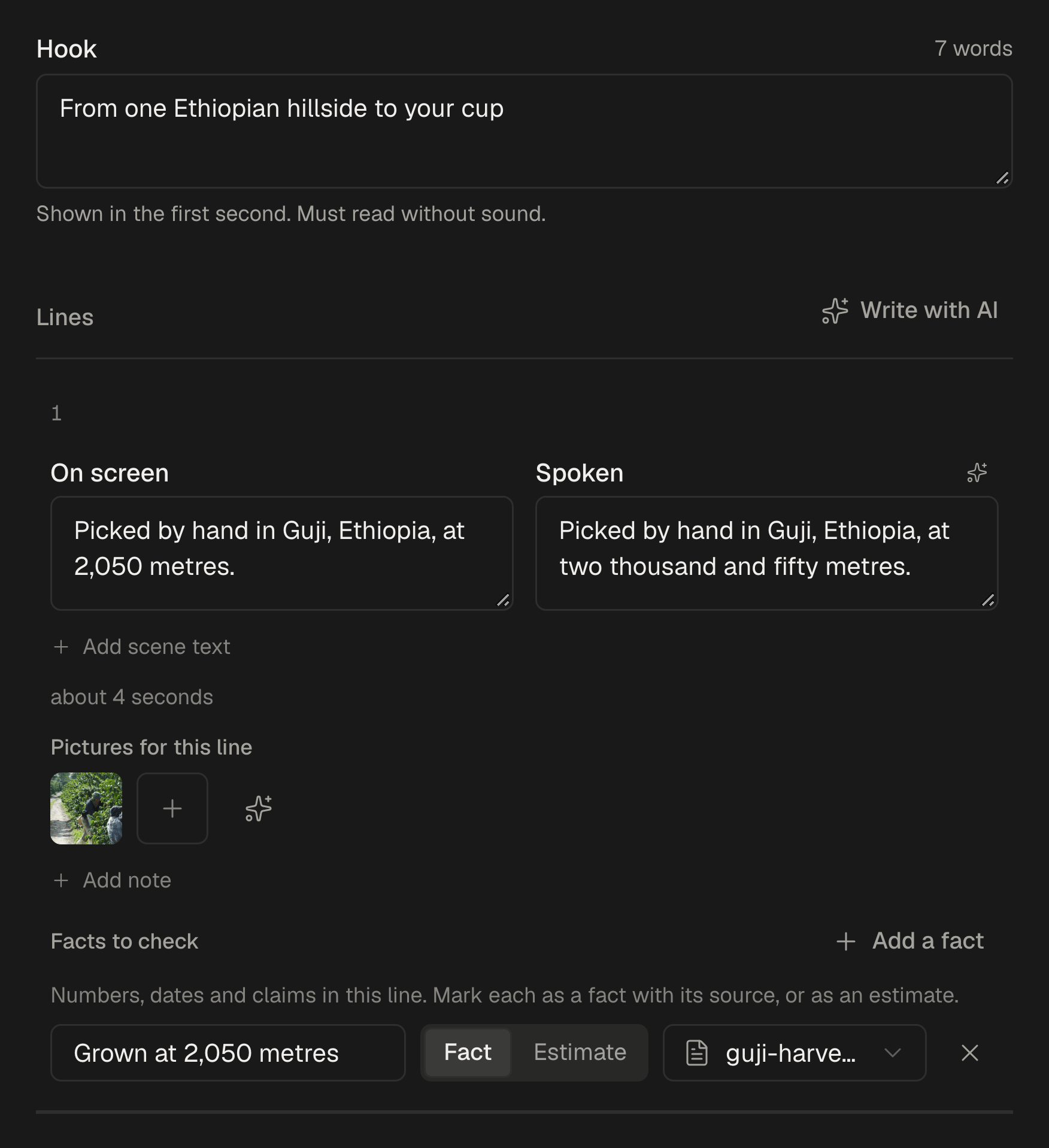
Write a script, or ask for one from an idea, and SPREVA makes the video: your pictures, a voice and captions timed to every word. Finish it in Studio.
Everything around the upload
YouTube uploads, done properly
Title, description, custom thumbnail, privacy, and the label YouTube asks for when a video was made or changed with AI. Scheduled like any other post.
Shorts from the long video
Up to 10 clips a run, cut on whole sentences, with captions and a hook, each its own project to change.
From a script to a first cut
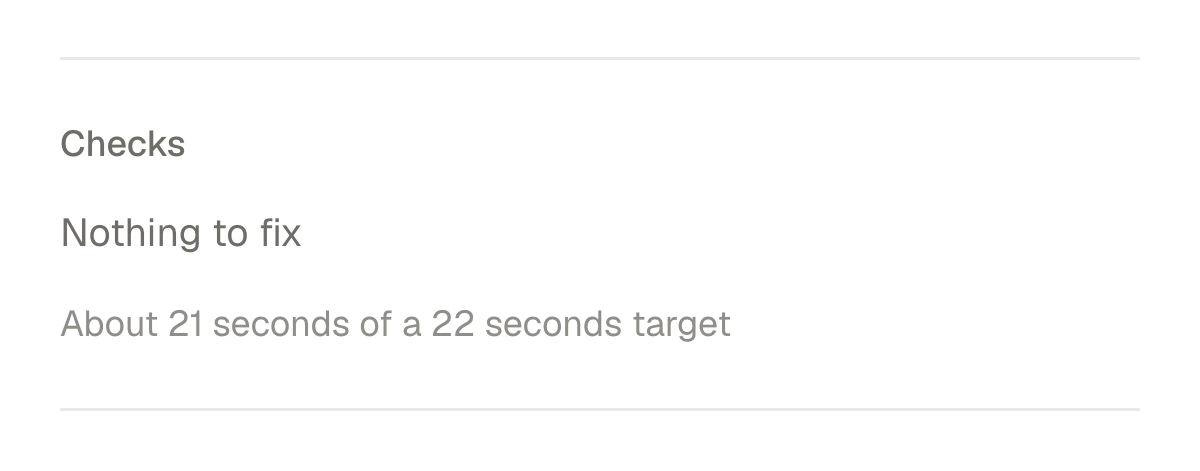
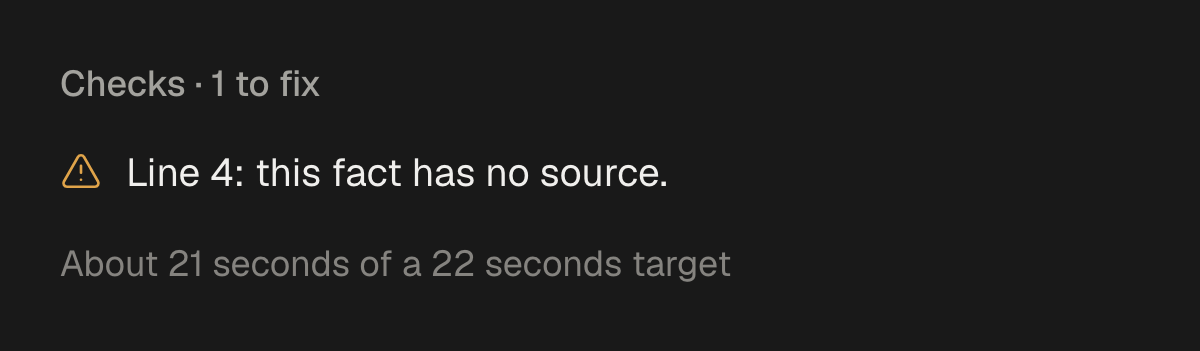
Write it yourself or start from an idea and your notes. Each line becomes a scene with its picture, and the script is checked for length and missing sources as you write.
Your voice or a narrator
Talk on camera yourself, or pick a narrator's voice after hearing it. Captions follow either one word by word.
The look of a video you like
Show SPREVA a short whose look you want and it builds a style from it: where the captions sit, their size, the hook, the motion. New videos use it.
An editor that takes requests
Ask Studio's AI for a change, like “a shorter intro” or “captions lower”, and it edits the timeline. Every change is one step you can undo.
Scheduling YouTube works on every plan. Shorts from a video, scripts and Studio come with Pro and Business. Compare the plans
Questions
Does SPREVA upload straight to my channel?
Yes. Connect your channel once, and SPREVA uploads at the time you set, with the title, description, thumbnail and privacy you chose.
Can I schedule Shorts?
Yes. A vertical video of up to three minutes goes up to YouTube like any other, and YouTube shows it as a Short.
Can I add chapters, end screens or playlists?
YouTube makes chapters from timestamps in the description, so write them there. End screens and playlists are set in YouTube Studio after the upload.
Is there a size limit?
Each video can be up to 1 GB. A long video in high resolution is bigger than that: upload it to YouTube directly and use SPREVA for the Shorts and the posts around it.
Do I have to use an AI voice?
No. Do the talking on camera yourself, or make a montage of short text set to music. A narrator's voice is one of three ways, not the only one.
Which plan do I need?
Scheduling to YouTube works on every plan. Shorts from a video, scripts and Studio come with Pro and Business, and every plan starts with a 7-day trial.
SPREVA for other work
- ClippersTen clips with captions from one long video.
- StreamersYour stream as clips on every short-video network.
- Video editorsA full timeline, and the posting done for you.
- PhotographersWhole shoots, posted as carousels on schedule.
- PodcastersA week of clips from every episode.
- AgenciesA workspace, a calendar and roles per client.
- Small businessesYour photos as Reels, posters and posts everywhere.