A Chrome extension that turns any page, text or image into a post
The best ideas for a post arrive while you are reading something else: an article worth sharing, a sentence worth quoting, a picture that says it all. Copying the link, opening another tab, pasting, downloading the image and uploading it again takes long enough that most of them never become a post. SPREVA's Chrome extension makes it one click.

Rodolfo MotaFounder of SPREVA
The short version
Add SPREVA to Chrome. On any page, press its button in the toolbar, press Alt+Shift+S, or right-click a text, an image, a video or a link. A new tab opens beside the page with a draft post in SPREVA: the text and the link already written, the image or video attached. Choose the accounts, change what you want, and publish it, schedule it or add it to a queue.
Adding it to Chrome
Find SPREVA: AI Social Media Scheduler & Post Creator in the Chrome Web Store, add it, and pin it to the toolbar so its button is always one click away.
There is nothing to sign in to inside the extension. It opens SPREVA in a tab, where you are already signed in; if you are not, you sign in first and land straight on the post.
Six ways to share
Whatever you are looking at, there is a way to send it:
- The toolbar button opens a small window: Share this page on SPREVA, the switches for the site buttons, and Open SPREVA.
- Alt+Shift+S (Option+Shift+S on a Mac) shares the page you are on at once, without a click.
- Select a text and right-click: Create a post with this text. The text becomes the post, with the page's address under it.
- Right-click an image: Create a post with this image.
- Right-click a video: Create a post with this video.
- Right-click a link, or anywhere else on the page: Share this link on SPREVA or Share this page on SPREVA.
What opens
The new tab opens the post in SPREVA, as a draft. Its text is what you selected, a blank line and the page's address; or, when you shared a whole page, its title and its address. An image or a video goes into your media library, where it is described like any other upload, and is attached to the post, which is already the right kind: an image post for an image, a video post for a video.
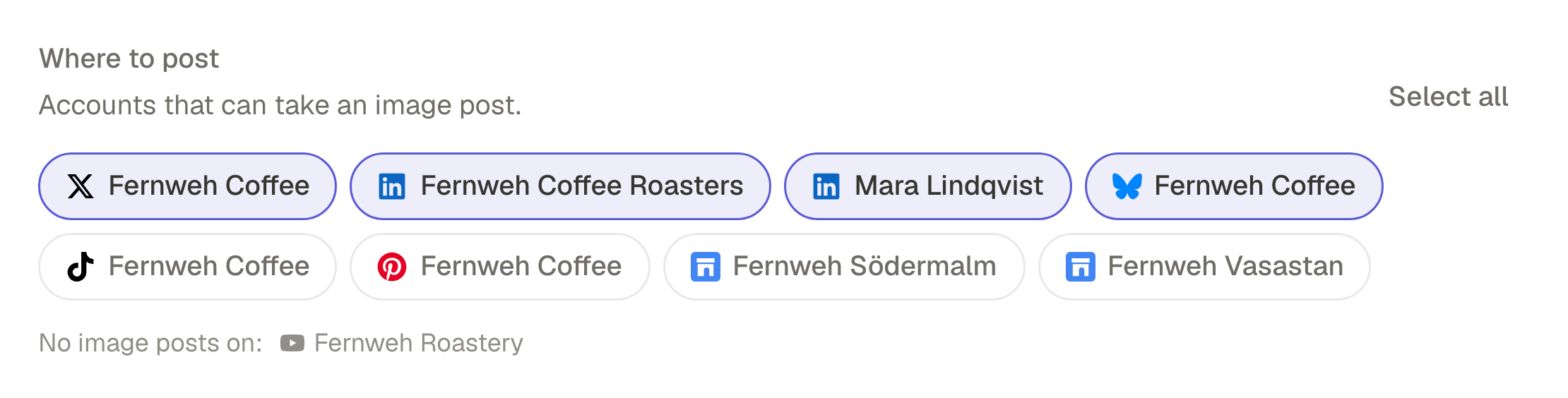
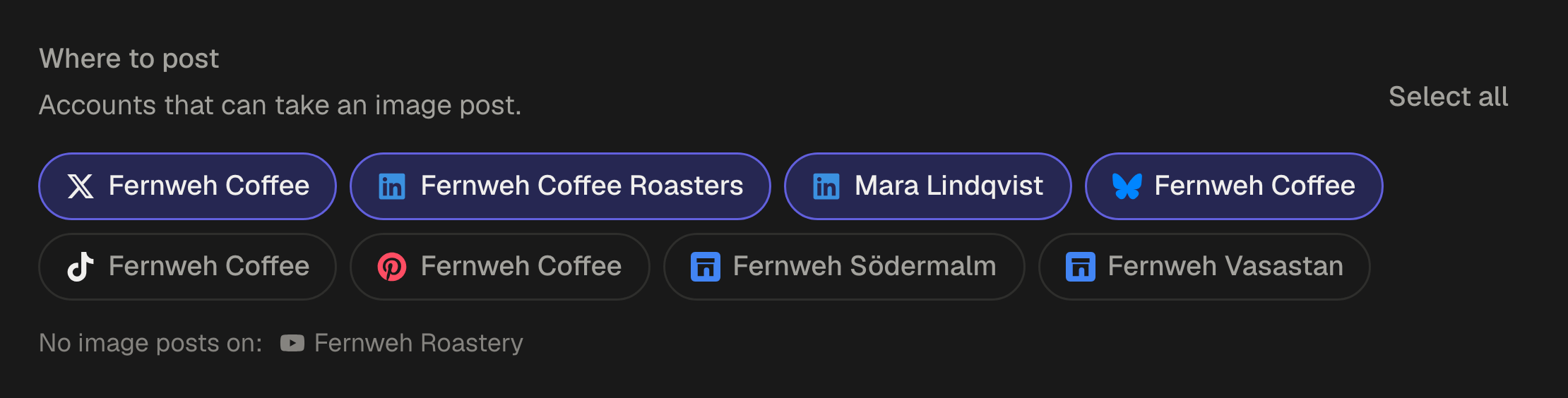
From there it is a post like any other: choose the accounts, give each network its own text under Per account, and publish now, schedule it or add it to a queue. Until you do, it waits in your drafts. If a file cannot be added, because it is too large or the site does not let it be downloaded, the draft keeps the text and tells you why.
Buttons inside the sites you read
The extension can also put its own button where you already read: under every post on X, next to Save on Instagram, on every Reddit post, on every Hacker News story, on every Pinterest pin, and over any image on any site. They are all off when you add the extension. Switch on only the ones you want, from the toolbar button: each asks Chrome for access to that one site, right then, and you can refuse.
What the extension can see
An extension that sits in your browser should ask for little, and this one asks for almost nothing:
- No access to any site when you add it. It can read the page you are on only at the moment you press its button or one of its menu items.
- Nothing kept in your browser and no account of its own: what you share goes only to SPREVA, in the address of the tab it opens.
- Each site button asks for its own site when you switch it on, and gives the access back when you switch it off. Only the button over images asks for all sites, since it works on any of them.
Share the next thing worth sharing
Add the extension, pin it, and the next time you read something worth posting, press the button instead of copying the link. Every plan starts with a 7-day trial. How to plan a month of social media in a content calendar.
Questions
Is the extension free?
Yes. Adding it costs nothing; the posts it makes are published by your SPREVA account, and every plan starts with a 7-day trial.
Do I sign in to the extension?
No. It has no account of its own: it opens SPREVA in a tab, where you are already signed in. If you are not, you sign in once and land on the post.
Does it publish straight away?
No. It opens a draft. Nothing goes out until you choose the accounts and publish it, schedule it or add it to a queue.
Can I share a YouTube video with it?
Share the page: the post gets the video's title and its link. Create a post with this video is for a video file shown on a page, which SPREVA adds to your library.
Can I change the keyboard shortcut?
Yes. Open the extension's toolbar button and press Change next to Keyboard shortcut, or set it on Chrome's own shortcuts page for extensions.
Written by
Rodolfo Mota
Founder of SPREVA
Makes SPREVA in Portugal: the Studio, the tools an agent works with, and the publishing behind them.
Keep reading
- How to automate social media posting without sounding like a botQueues, bulk scheduling, an API and AI agents: four ways to automate social media posting in SPREVA, and the habits that keep automated posts sounding like you.
- How to plan a month of social media in a content calendarHow to plan a month of social media posts in one sitting: a rhythm, campaigns for the fixed dates, themes, and a calendar to see and move it all.
- A media library that knows what is in itFolders and file names stop working at about a hundred files. What SPREVA does instead: every upload described and tagged as it arrives, videos transcribed, alt text suggested, and a search that understands “the window at dusk”.