How to plan a month of social media in a content calendar
A content calendar fails the same way every time: a spreadsheet full of ideas in week one, empty by week three. This is a way to plan a month that lasts the month: decide the rhythm once, fill it in one sitting, and keep one calendar where everyone sees what goes out when.

Rodolfo MotaFounder of SPREVA
The short version
Set your posting times once with a queue, mark the month's fixed dates (a launch, an event, a holiday) with campaigns, and write the month in one sitting, straight into the queue or onto its dates. SPREVA's calendar then shows every scheduled post by month, week, day or as a list, with the queue's free times between them. Drag a post to move it; click an empty time to fill it.
Four decisions, made once
Most of a content calendar is decided before any post is written:
- 1
The rhythm. How often, on which days, at what time. Make it a queue: Monday, Wednesday and Friday at 9:00, for example, in your customers' time zone.
- 2
The fixed dates. Launches, events, holidays, a sale. Make each one a campaign with its own colour, so its posts stand out on the calendar.
- 3
The themes. Three or four kinds of post you rotate: behind the scenes, a product, a tip, a customer. A theme per posting day makes the month quicker to write.
- 4
The writing session. One sitting for the whole month, from your photos and notes, rather than one post at a time on the morning it is due.
Filling the month in one sitting
Write each post once and adapt it for each network under Per account. Add it to the queue and it takes the next free time; give a campaign's posts their own dates instead.
For a month already written somewhere else, bulk scheduling takes up to 200 rows at once, from files, the library or a CSV file, and spreads them out: every few days at the same time, or every few hours.
Ideas that are not ready wait in Drafts, saved as you write. They stay off the calendar until they have a time.
Reading and changing the calendar
The calendar is where the month is checked and adjusted:
- Month, week, day or agenda. Month for the shape of the month, week to see the times, agenda on a phone.
- Free queue times show in the week and day views as faint placeholders with the queue's name, so a gap is visible before it happens.
- Click an empty time to start a post for exactly then; in the month view, click a day.
- Drag a scheduled post to move it, in 15-minute steps, with Undo right after. With a keyboard, Alt and the arrow keys move it by 15 minutes or by a day.
- Filter by status, network, account or campaign, or search the captions.
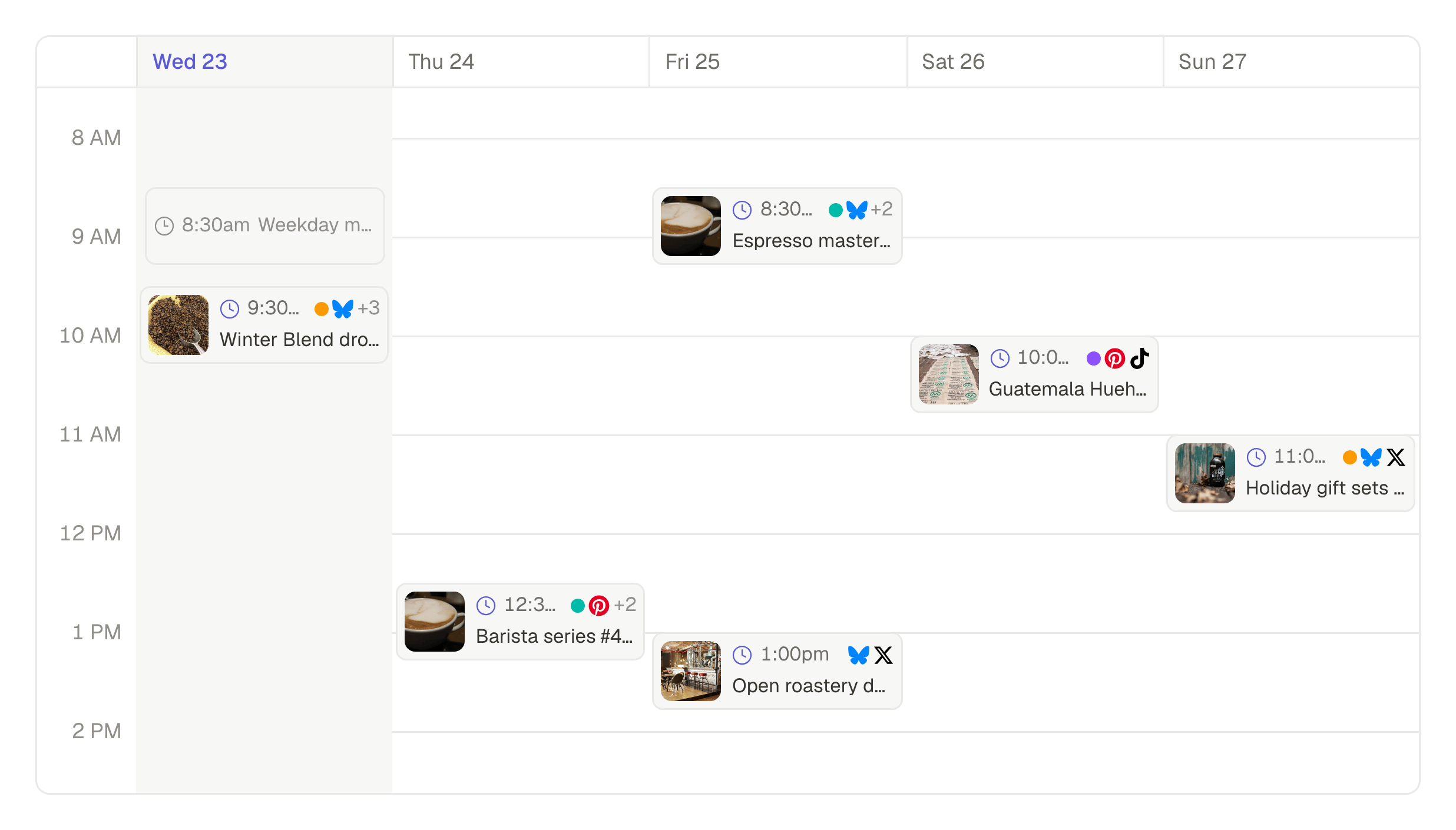
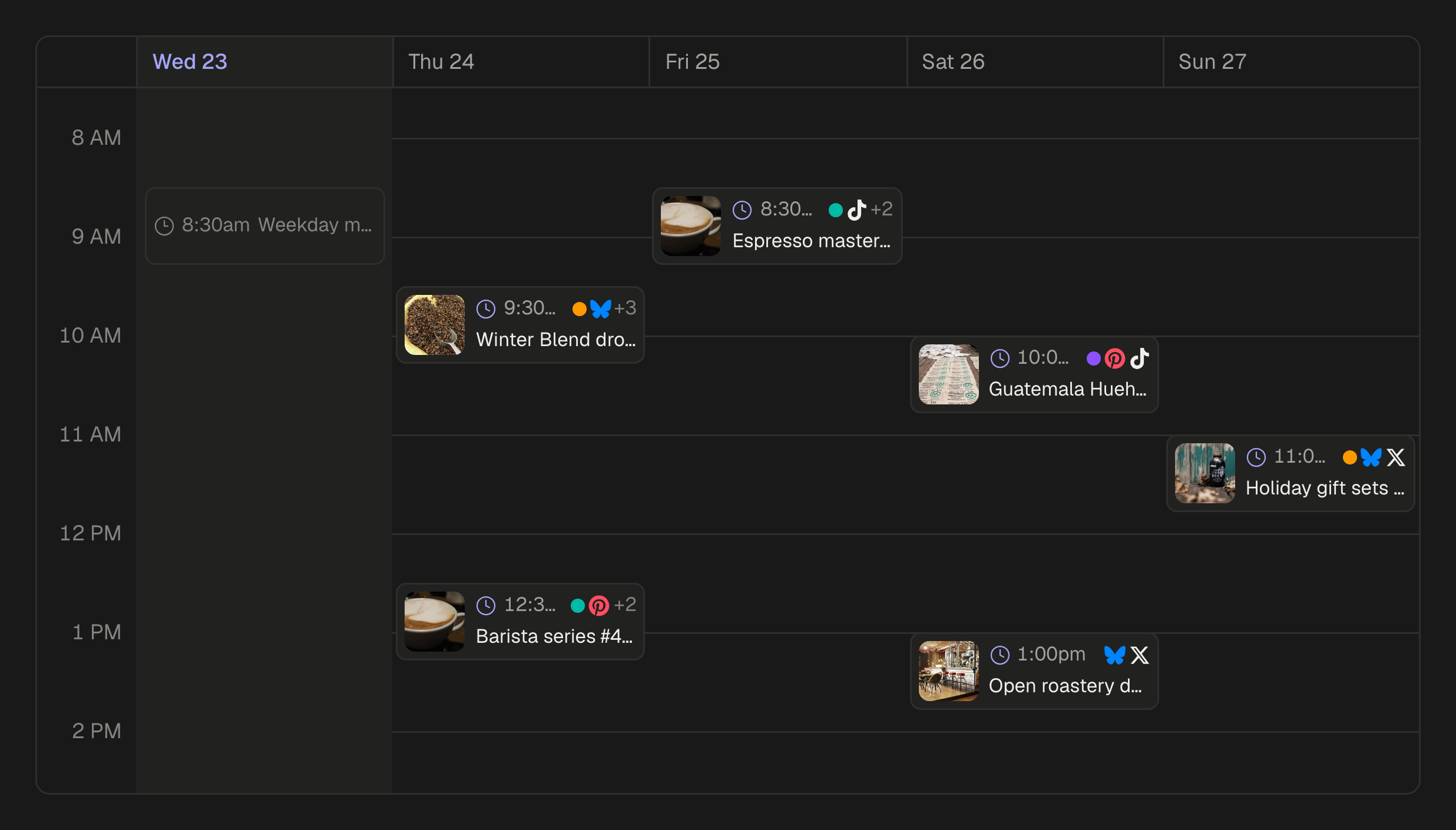
Times are shown in the workspace's time zone, named at the top of the calendar, and each queue can keep a time zone of its own.
One launch, one colour
A campaign groups the posts of one launch. Give it a colour, and each of its posts shows that dot on the calendar. View on the calendar shows only its posts, and the campaign's page lists them all, so a launch can be checked at a glance and, afterwards, measured on its own. How to report a month to a client.
When a client approves the posts
With approvals on, a post waiting for a yes shows on the calendar as In review, at its time. Approved, it turns Scheduled; if the client asks for changes, it goes back to draft and leaves the calendar. Moving an approved post keeps the approval and tells the approver; a post in review stays where it is until someone answers. How the approval works, step by step.
Plan next month this week
Make one queue, one campaign for the month's main date, and give yourself one afternoon to write the month. Every plan starts with a 7-day trial.
Questions
Do drafts show on the calendar?
No, only posts with a time. Drafts wait in Drafts until you schedule them or add them to a queue.
Can I drag a post to another day?
Yes, a scheduled post: in the week or day view to the quarter of an hour, in the month view to another day at the same time. On a touch screen, use Reschedule instead.
How far ahead does a queue look for a free time?
Up to 60 days. A post added to a queue takes the next free time within that window.
Written by
Rodolfo Mota
Founder of SPREVA
Makes SPREVA in Portugal: the Studio, the tools an agent works with, and the publishing behind them.
Keep reading
- How to automate social media posting without sounding like a botQueues, bulk scheduling, an API and AI agents: four ways to automate social media posting in SPREVA, and the habits that keep automated posts sounding like you.
- One post from draft to feed: a client approval workflow, step by stepOne bakery post followed from the draft to the morning it goes out: who does what, what the client sees, and what happens when the answer is not yes.
- How to send a client a monthly social media reportWhat a monthly social media report should say, and how to pull it from SPREVA: the numbers against last month, the posts that worked, and what comes next.