How to schedule Pinterest Pins, carousels and video Pins
A Pin does not vanish down a feed. People find it weeks later, by searching, while they plan something. So the details count more than the minute it goes out: the board, the title, the link, the words people search for. This is how to schedule Pins in SPREVA with all of them right.

Rodolfo MotaFounder of SPREVA
The short version
Connect your Pinterest account, add an image, a carousel or a video, pick the board, write a title and a description in the words people search for, add the link, and schedule it or add it to a queue. SPREVA checks Pinterest's limits before it publishes: a description of 800 characters, a title of 100, a carousel of 2 to 5 images and a video of 4 seconds to 15 minutes.
Three kinds of Pin
| Kind | What it is | Limits |
|---|---|---|
| Image Pin | One image, saved to a board | Up to 20 MB |
| Carousel | Images people swipe through | 2 to 5 images; no video |
| Video Pin | One video, with a cover frame | 4 seconds to 15 minutes |
Scheduling a Pin, step by step
- 1
Press New in the sidebar, choose Post, then Image Post for an image or a carousel, or Video Post.
- 2
Pick your Pinterest account, then the Board in its Pinterest settings. SPREVA lists the account's boards as Pinterest has them; for a new board, create it in Pinterest first.
- 3
Write the title, up to 100 characters. Without one, SPREVA uses the first line of your text.
- 4
Write the description, up to 800 characters, and add the Link the Pin should open.
- 5
Describe the image under Alt text, for people who use a screen reader. For a video Pin, choose the cover frame, in seconds into the video.
- 6
Schedule it, or Add to queue.
If the board is deleted in Pinterest before the Pin goes out, SPREVA stops and tells you, rather than saving it to another board.
Write for search, not for the feed
People find Pins by searching, so write the title and the description the way someone would search: “autumn table ideas for a small flat”, not “Sunday mood”. Put the words that matter first in the title, and let the description say who it is for and what they will find behind the link.
Pinterest recommends tall images, 2:3, such as 1000 by 1500 pixels, which take up more room in its grid than square ones.
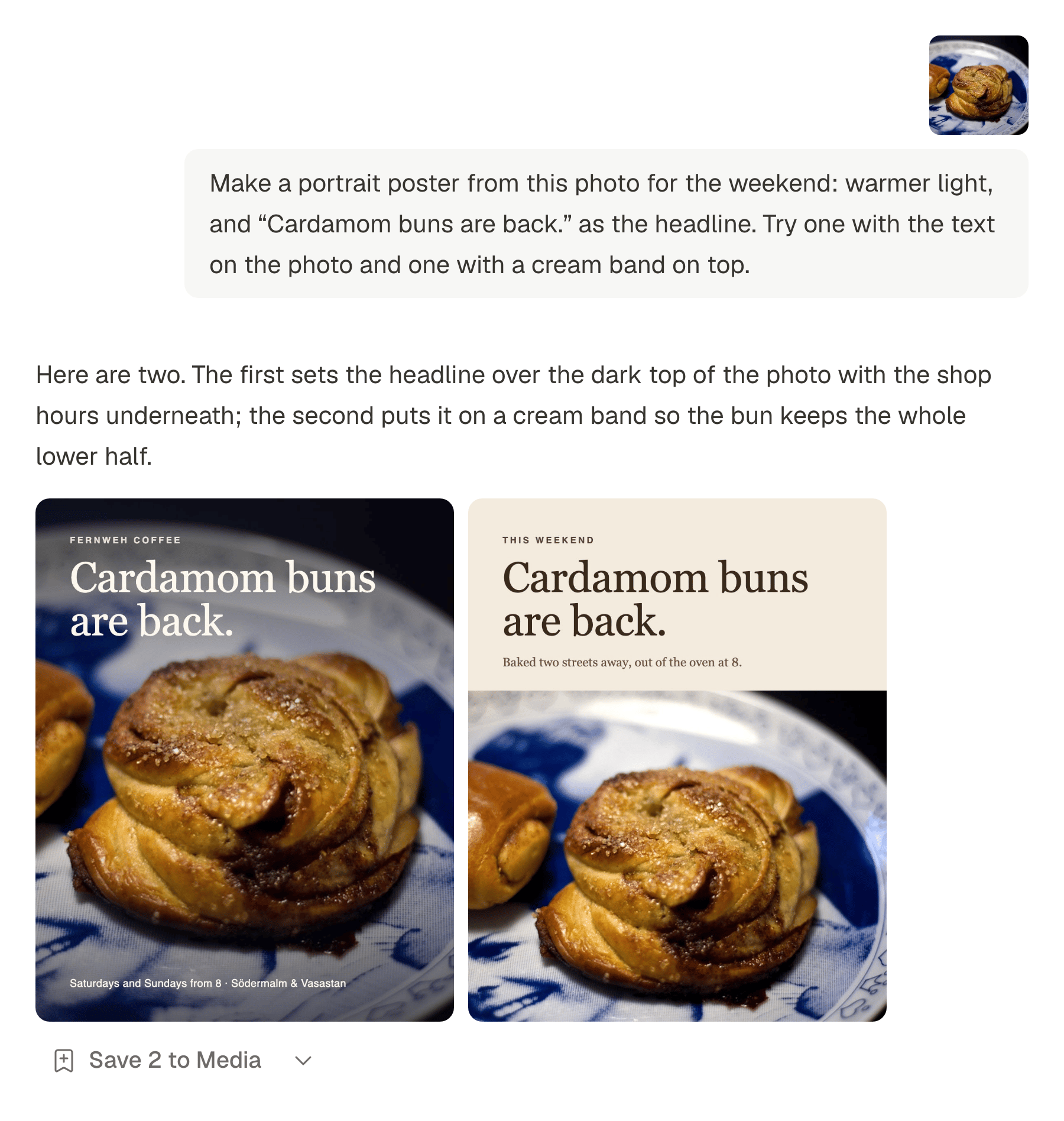
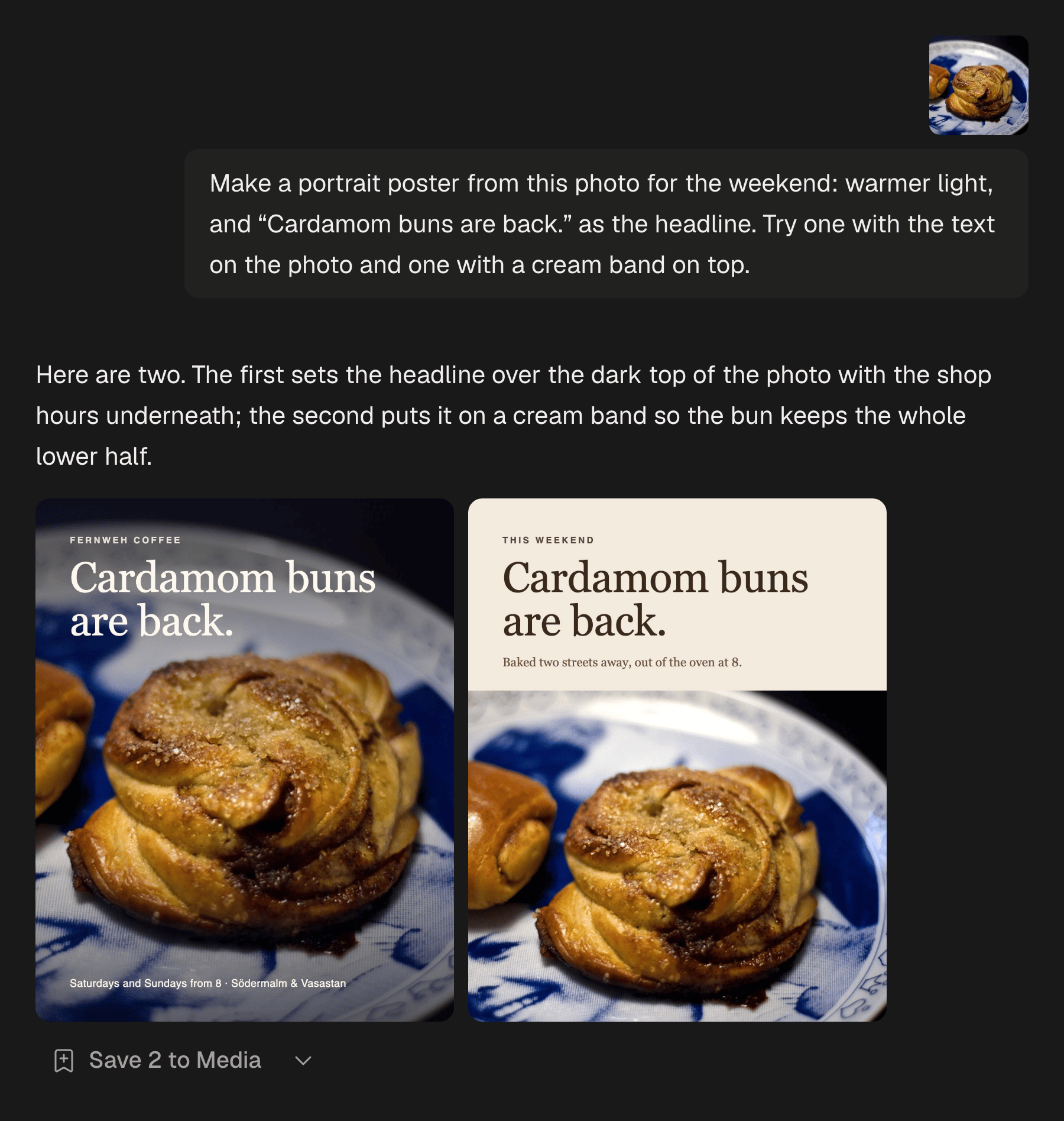
No tall version of your photo? Open Agent in the sidebar and ask for one, with a headline on it, then read the words before you save it to your library: image models still misspell. Each image costs 10 credits.
One photo, on Instagram and on Pinterest
The same picture can go to Instagram and Pinterest in one post. Each account can have its own text under Per account, and only Pinterest uses the title, the board and the link. Pinterest takes images of up to 20 MB, Instagram up to 8 MB, and SPREVA checks both before anything goes out. How to adapt one post for each network.
What comes back
For a business account, each Pin's numbers come back into SPREVA: impressions, saves, clicks to your link, comments and reactions, with your followers on the account. A personal account can publish just the same, but Pinterest shares those numbers only with business accounts.
Schedule a week of Pins
Connect Pinterest, make a queue with the times you want, and add a week of Pins to it, each to its board. Every plan starts with a 7-day trial.
Questions
Do I need a Pinterest business account?
Not to publish. To see each Pin's numbers in SPREVA, yes: Pinterest shares them only with business accounts, and switching is free.
Can SPREVA create boards?
No. Create the board in Pinterest, and it appears in SPREVA's list within a few minutes.
Can I save a Pin to a board section?
Not yet: Pins go to the board itself.
Can I schedule many Pins at once?
Yes. Add them to a queue and each takes the next free time, or load up to 200 at once with bulk scheduling.
Can each Pin have its own link?
Yes, each post has its own link. In a post that goes to several accounts, they all share it.
Written by
Rodolfo Mota
Founder of SPREVA
Makes SPREVA in Portugal: the Studio, the tools an agent works with, and the publishing behind them.
Keep reading
- A media library that knows what is in itFolders and file names stop working at about a hundred files. What SPREVA does instead: every upload described and tagged as it arrives, videos transcribed, alt text suggested, and a search that understands “the window at dusk”.
- How to adapt one post for Instagram, LinkedIn and XWrite one post and adapt it for Instagram, LinkedIn, X, Bluesky and Threads without rewriting it every time: a caption per network, each network's limits checked before it goes out, and scheduling on every account at once.
- Can you schedule an Instagram Story? Yes, and here is what it leaves outYes, an Instagram Story can be scheduled. How to do it in SPREVA, what goes out with it, what stays behind (stickers, a caption) and the numbers you get after.